1. Open Share Card
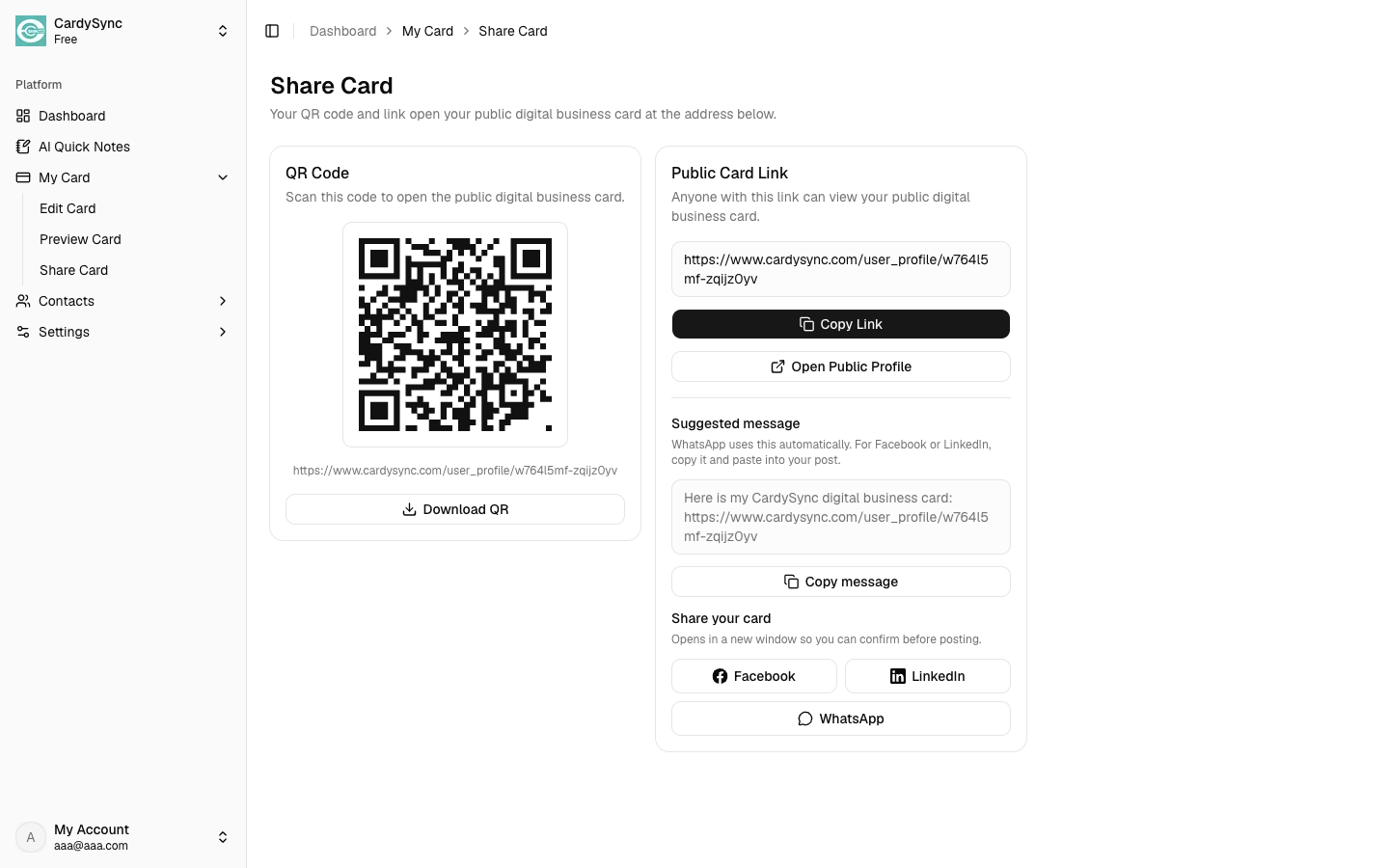
On Web, open Dashboard > My Card > Share Card. On iOS/Android, open Share Card from Home or Profile.
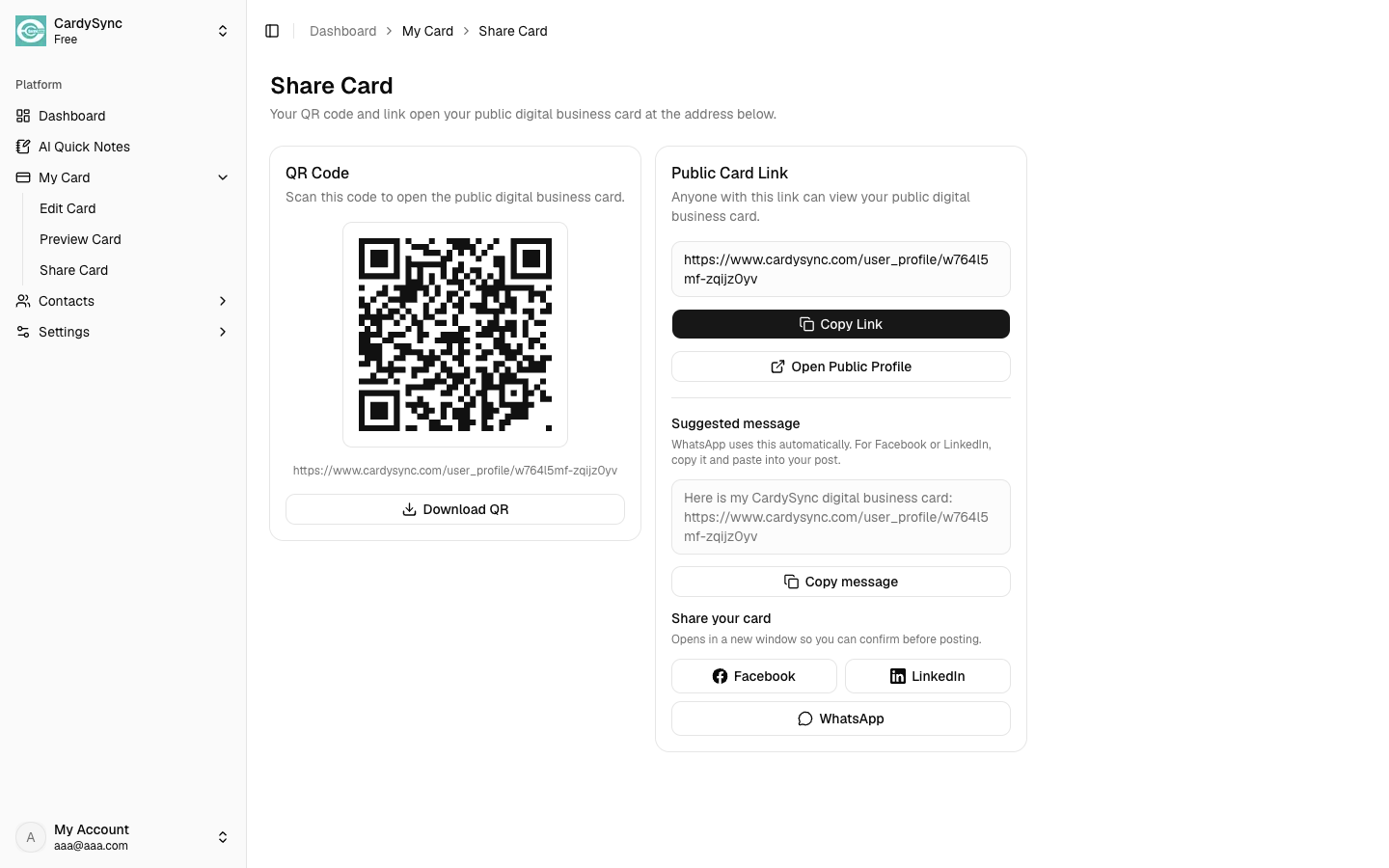
Share Card gives you one public link and QR code for your digital business card. Anyone who scans or opens it can view your card without installing CardySync. Sharing only works when your public profile is visible.
On Web, open Dashboard > My Card > Share Card. On iOS/Android, open Share Card from Home or Profile.
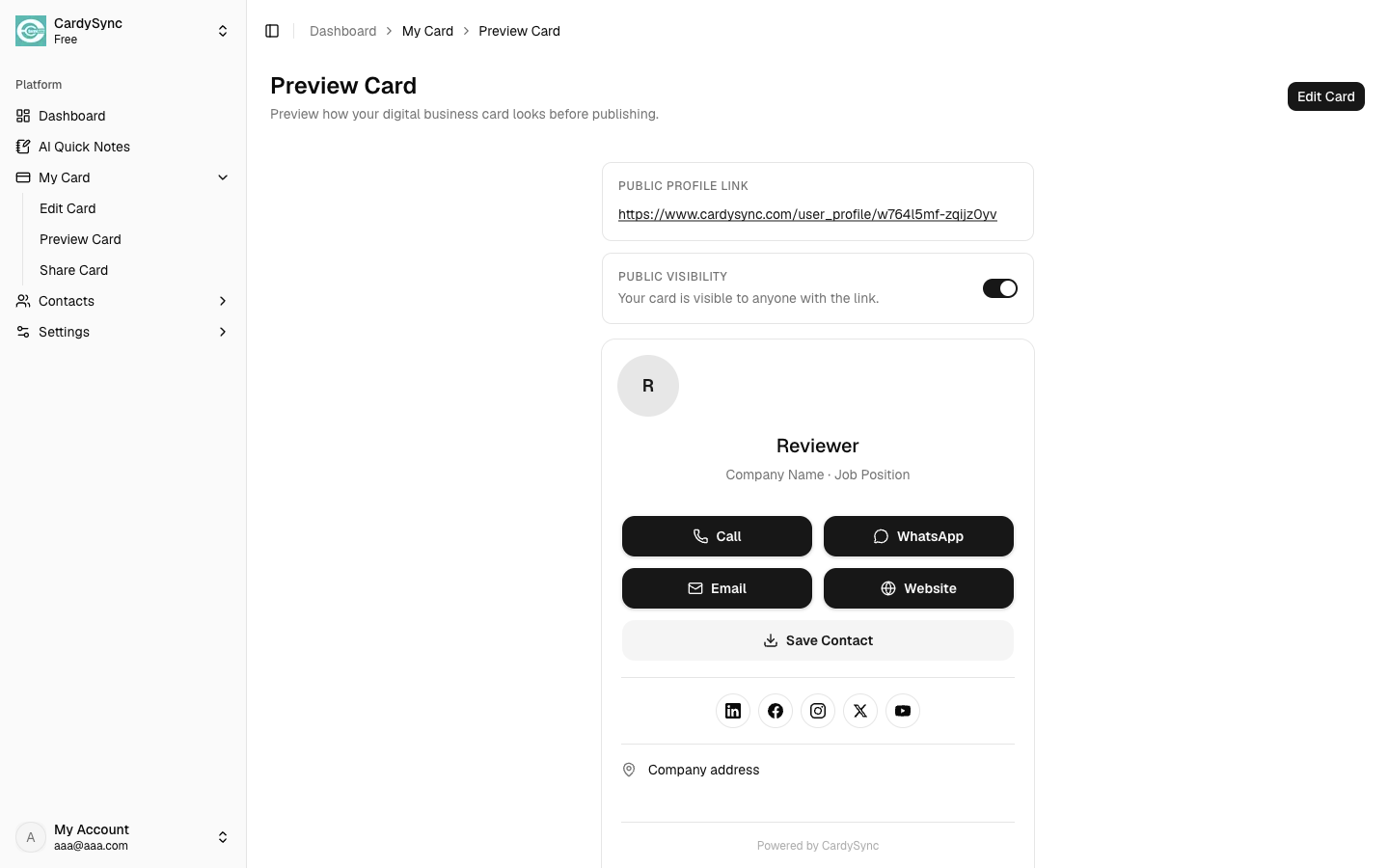
If you see that your public profile is hidden, turn on Public Profile / public visibility first. Until it is on, the QR code and link will not work for visitors.
When sharing is ready, show the QR code on your screen so someone can scan it with their phone camera. On Web you can also download the QR image for print or slides.
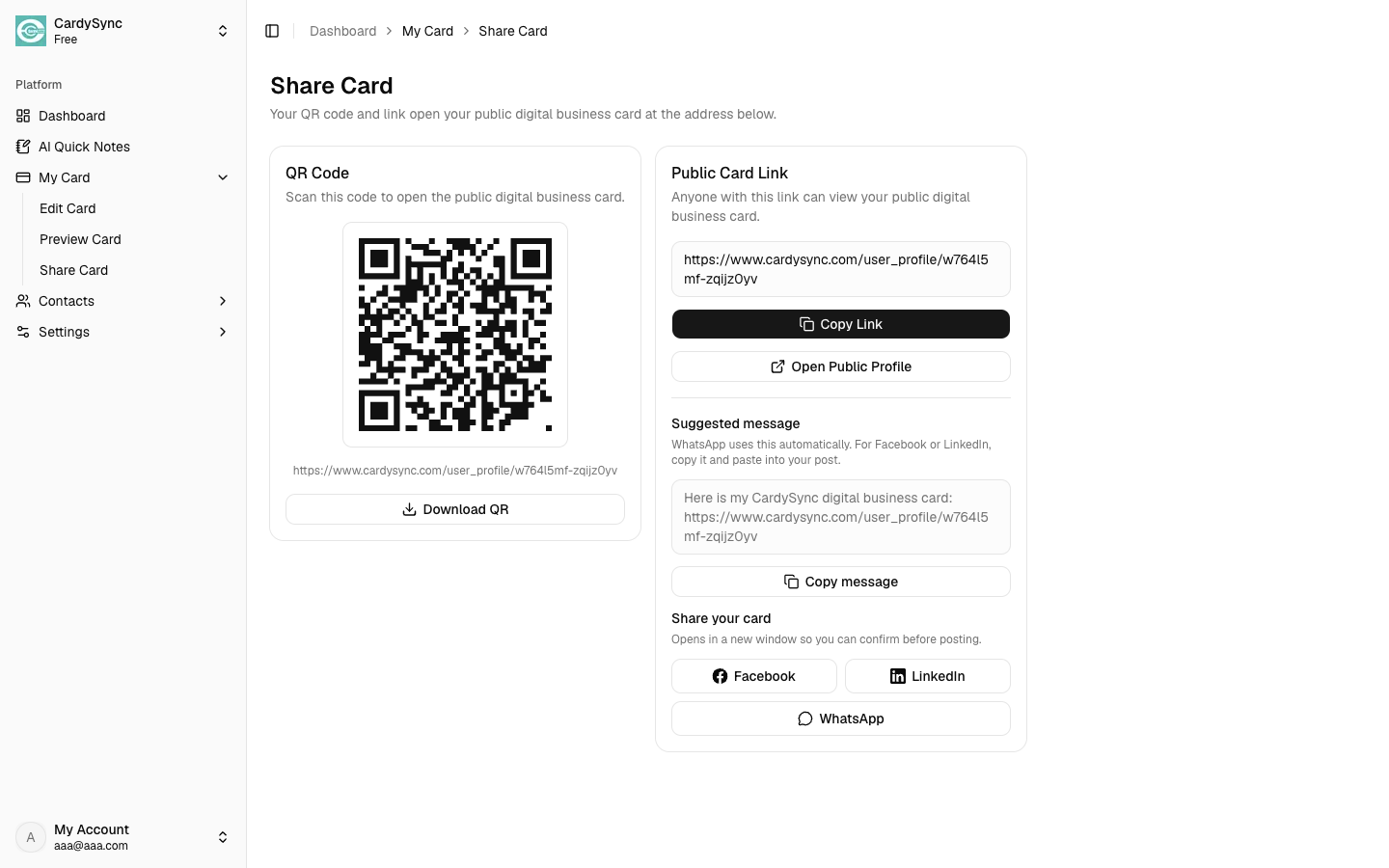
Tap Copy Link to copy your public card URL. You can paste it into WhatsApp, email, SMS, or any chat. Open Public Profile / Open Profile to preview what visitors see.
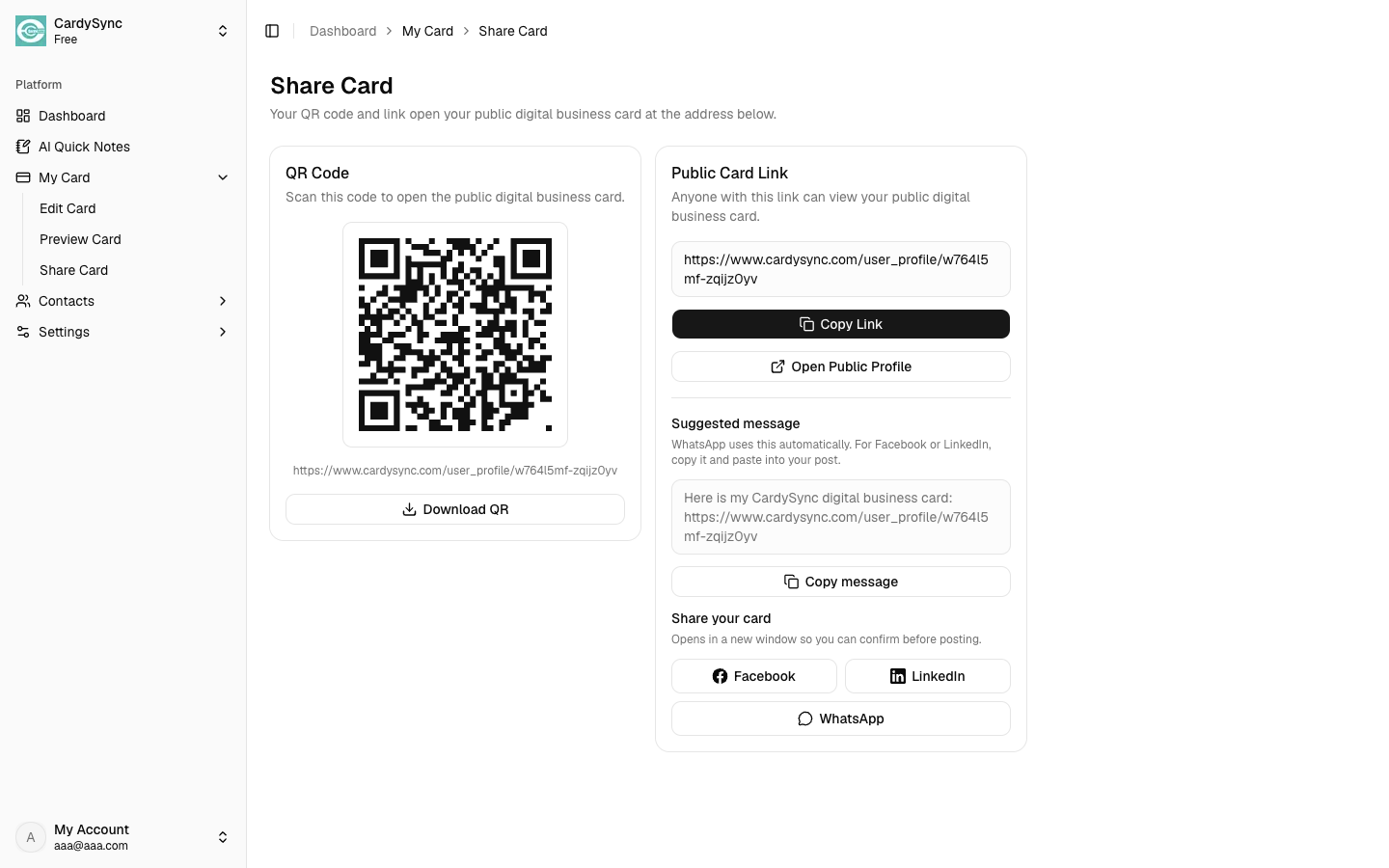
On iOS/Android, tap Share to open the device share sheet. On Web, use the suggested message, or share to WhatsApp, Facebook, or LinkedIn when available.
Also see: Download App / What's New