1. Open Contacts
On Web, sign in and open Dashboard > Contacts > All Contacts. On iOS/Android, tap Contacts in the bottom navigation. Only contacts saved to the signed-in CardySync account are shown.
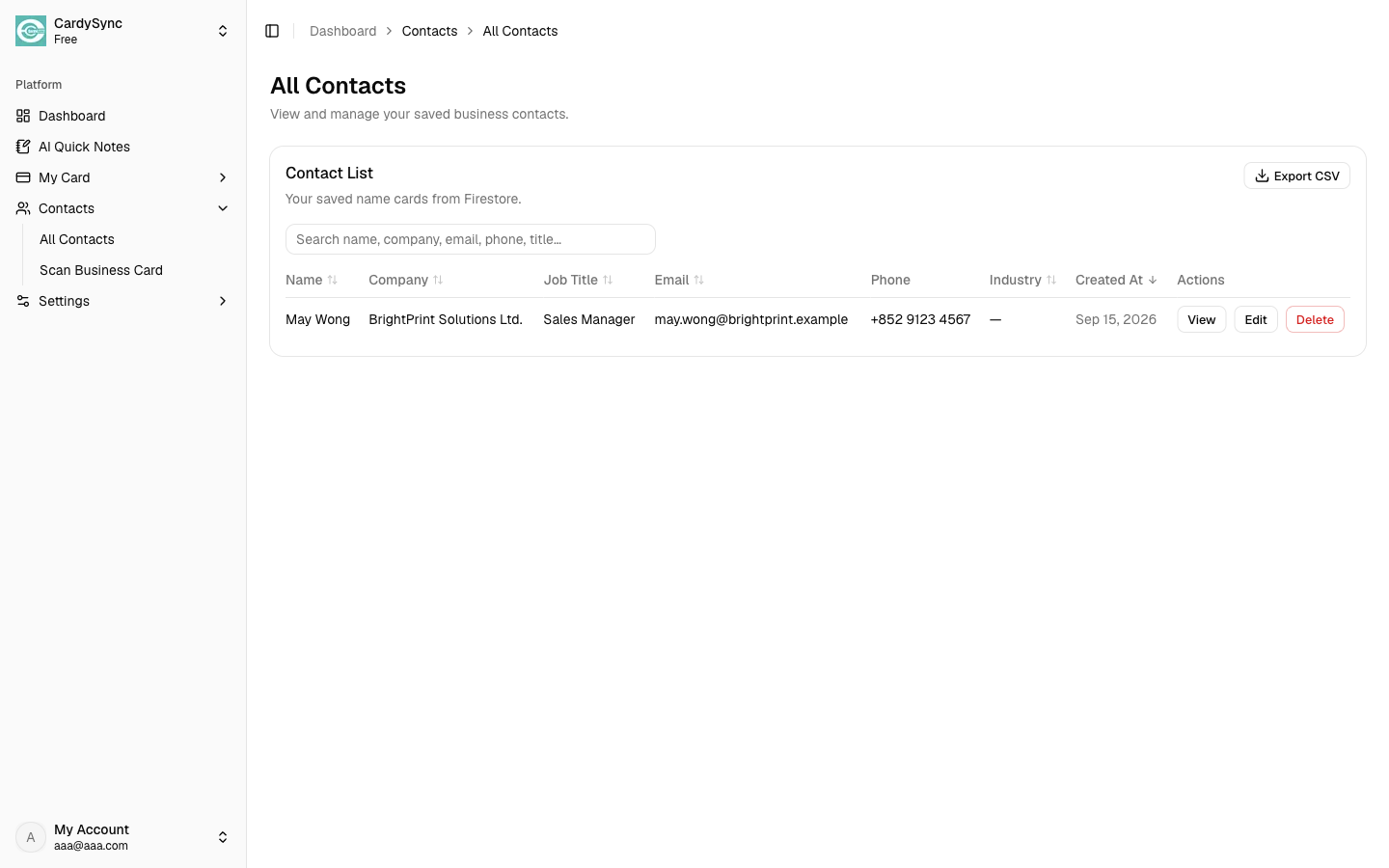
Contact Management keeps scanned business-card details organised and ready for follow-up. Use search to find a person quickly, review or correct their information, and export a backup when needed.
On Web, sign in and open Dashboard > Contacts > All Contacts. On iOS/Android, tap Contacts in the bottom navigation. Only contacts saved to the signed-in CardySync account are shown.
Enter a name, company, email address, phone number, or job title in Search. On Web, select a column heading such as Name, Company, Email, Industry, or Created At to change the sorting order.
On Web, choose View beside a contact. On iOS/Android, tap the contact card. Review the business-card image and available name, company, job title, phone, email, address, notes, and processing details before using them.
Choose Edit on Web, or open the contact and choose Edit Contact on iOS/Android. Correct any missing or inaccurate OCR details, then save your changes. Always check important email addresses and phone numbers against the original card.
On Web, choose Export CSV to download your saved contacts. On iOS/Android, open a contact and choose Add to Address Book to copy it to the phone after granting permission. To remove a CardySync contact, choose Delete or Delete Contact and confirm carefully; deletion cannot be undone.
Also see: Download App / What's New