1. Open Scan Business Card
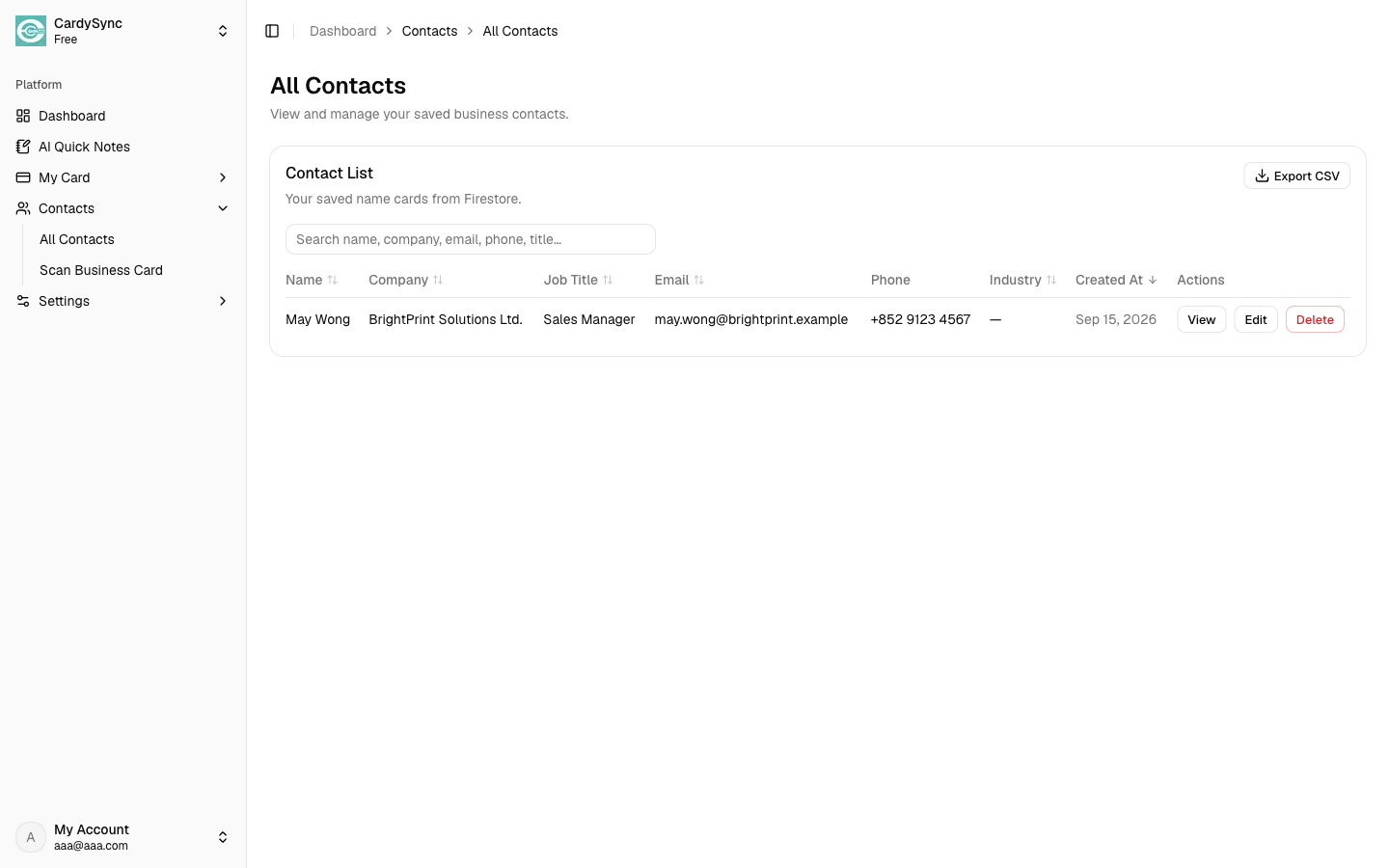
On Web, open Dashboard > Contacts > Scan Business Card. On iOS/Android, tap the Scan tab in the bottom navigation (or Scan Now on Home).
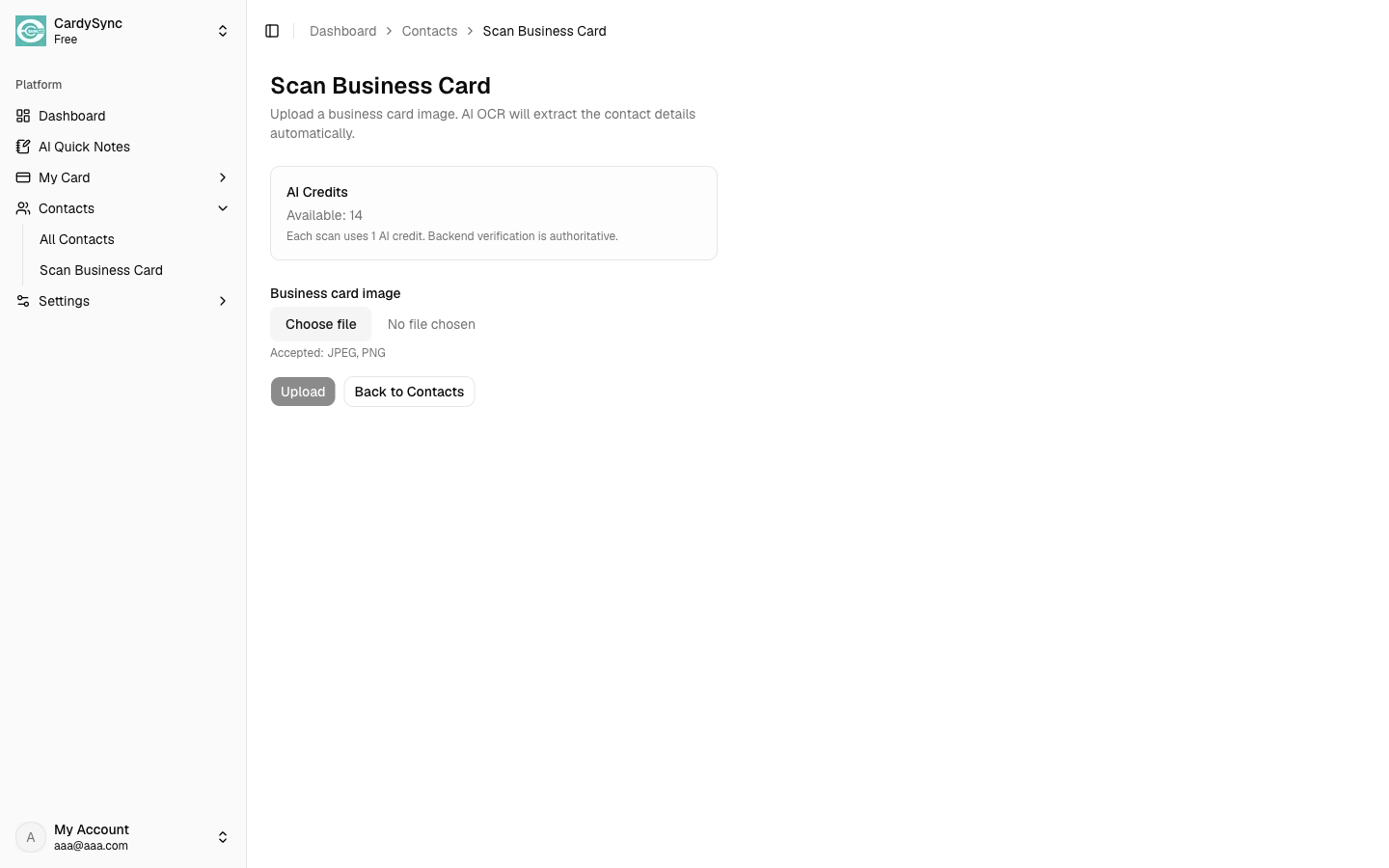
Scan Business Card (AI Smart Lens) turns a photo of a paper card into a saved contact. Each successful scan uses part of your AI allowance. It works on Web, iOS, and Android, and the contact syncs with your CardySync account.
On Web, open Dashboard > Contacts > Scan Business Card. On iOS/Android, tap the Scan tab in the bottom navigation (or Scan Now on Home).
Confirm that you have AI usage remaining. Each successful scan uses part of your allowance. Backend verification is authoritative. On mobile, eligible rewarded ads on Home may add more usage when your remaining allowance is low.
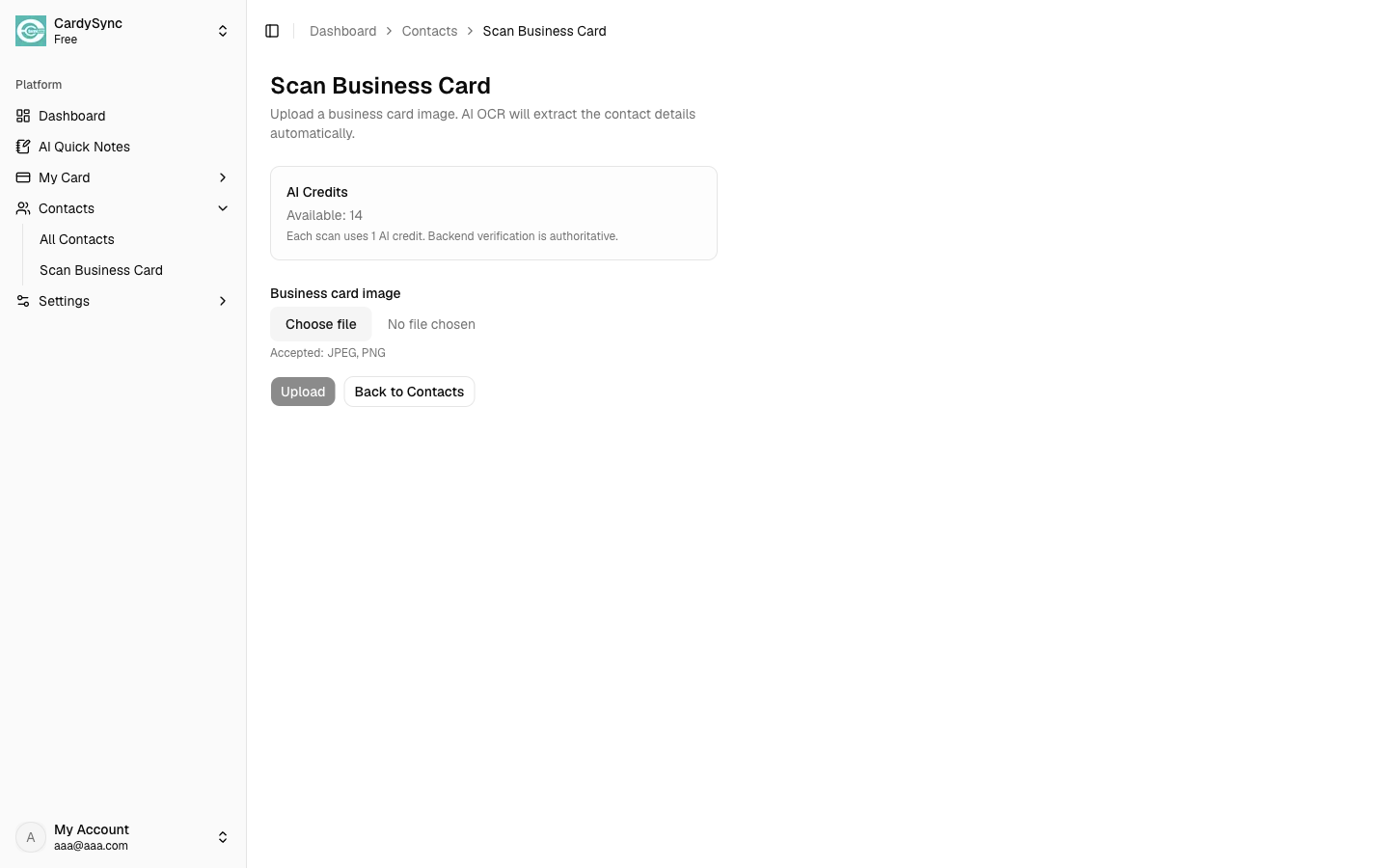
On Web, choose a JPEG or PNG image of the business card. On iOS/Android, take a photo with the camera or pick an image from your library. Keep the card flat, well lit, and fully in frame.
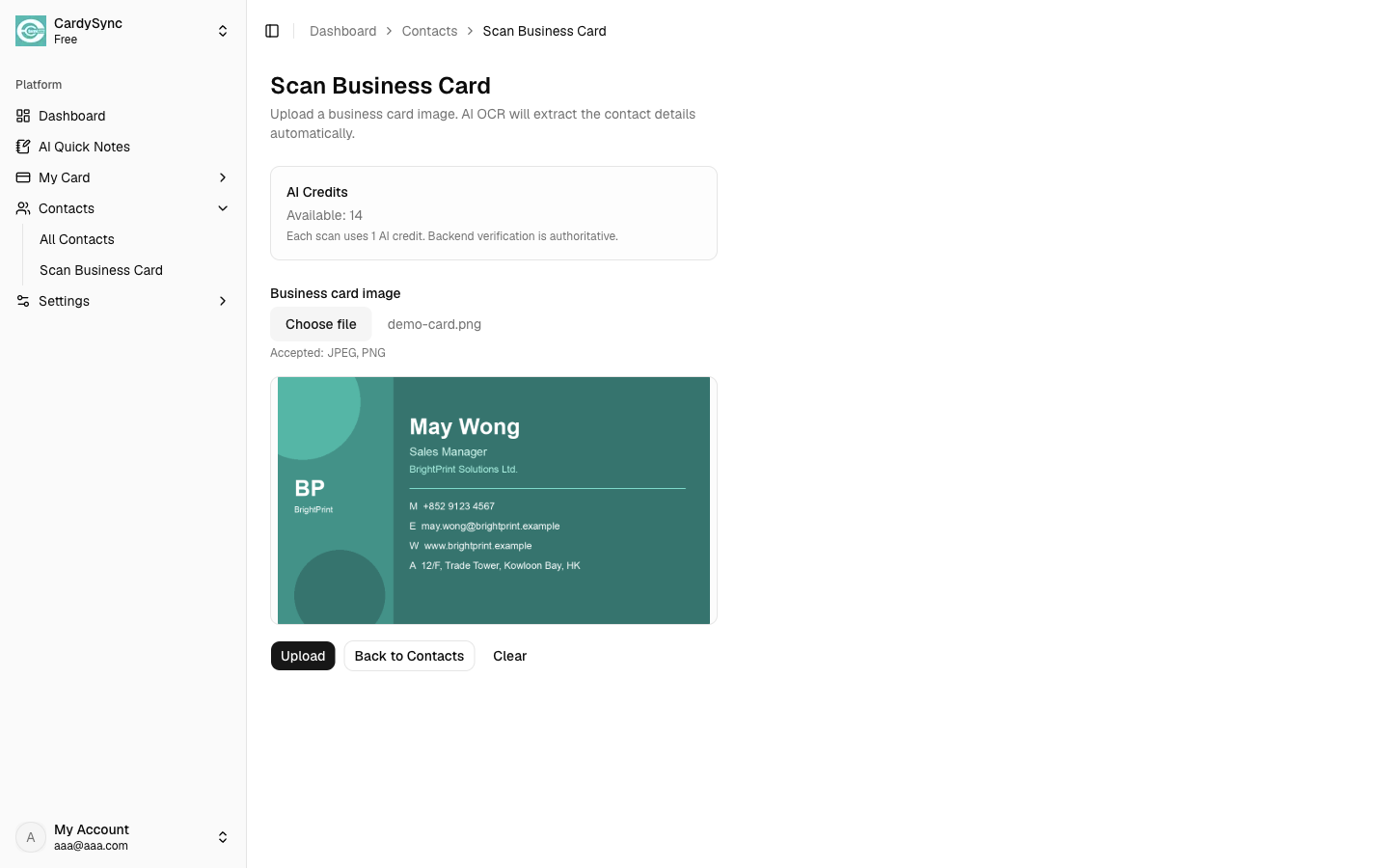
Submit the image. CardySync uploads it and AI OCR extracts name, company, phone, email, and other details. Processing can take a short moment.
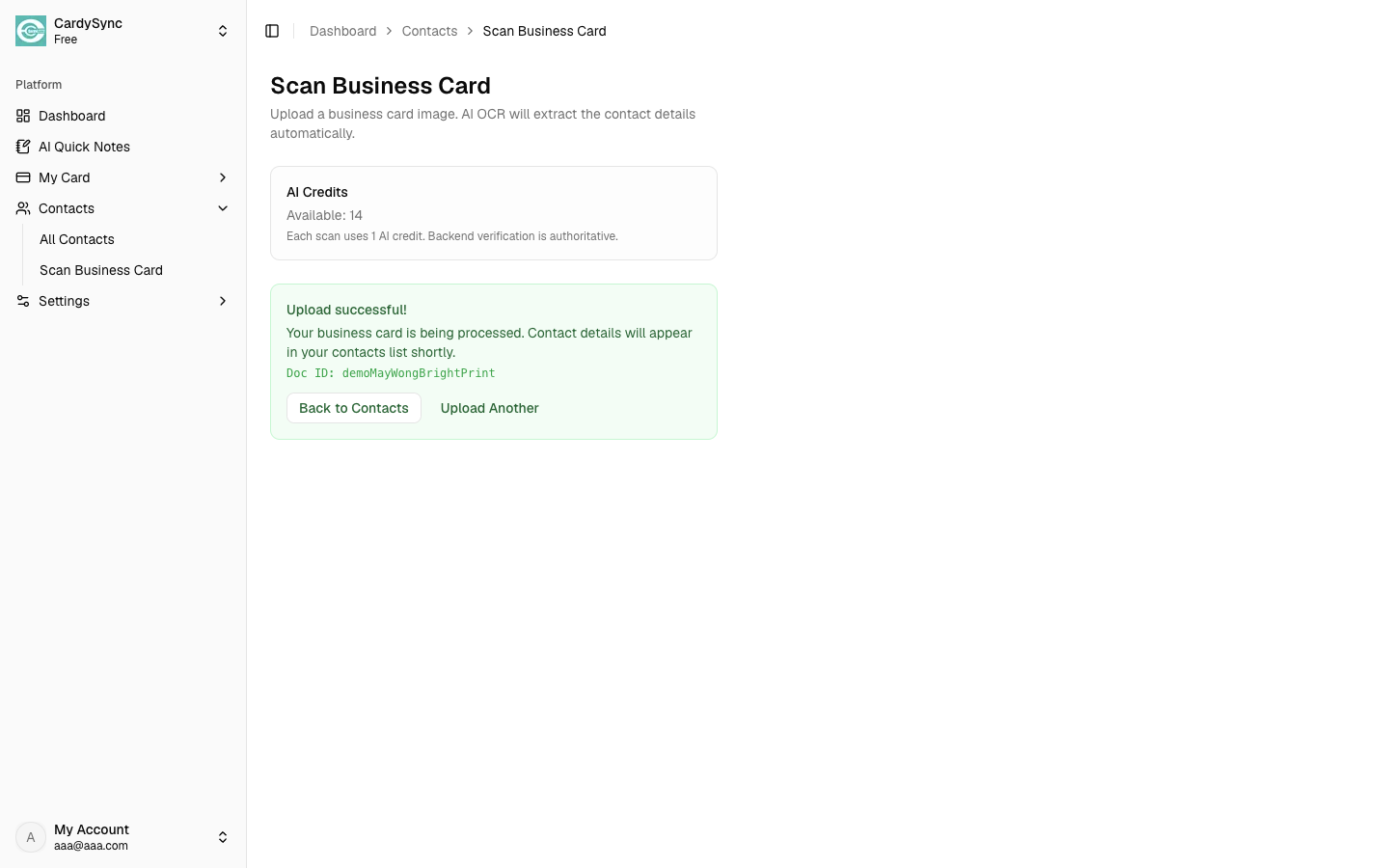
Open Contacts to review the new contact. Edit any field if OCR missed something, then save. You can also open the contact later from All Contacts.
Also see: Download App / What's New